Quick Summary
Anghami downloads are encrypted and app-locked. Learn how to record Anghami music as standard MP3 files for personal use on any device.
Anghami does not let you download MP3 files. Even Plus subscribers get encrypted, app-locked files that disappear when the subscription ends—files you cannot move to a USB drive, car stereo, or any device outside the Anghami app. If you need standard MP3s you actually control, the only working method is to record Anghami’s audio in real time.
What Is Anghami and Why You Cannot Download MP3 Directly
Anghami is a major music streaming service popular in the Middle East and North Africa, with 70M+ users and 57M+ Arabic and international songs in its library. Like Spotify or Apple Music, it is built around streaming, not file downloads you own.

Anghami has several tiers:
- Free — No offline downloads, ad-supported. Fine if you always have data.
- Anghami Plus (~$4.99/month or $49.99/year) — Removes ads, lets you download songs for offline listening inside the app, higher streaming quality.
- Anghami Gold (~$7.49/month) — Everything in Plus, adds sing-along lyrics and cloud library features.
The problem behind every “Anghami to MP3” search is simple: Anghami downloads are not standard MP3 files. Downloaded tracks are stored as encrypted cache files with random names. The official support documentation explicitly states that you cannot copy downloaded songs to your device storage—they only play inside the Anghami app on a logged-in account.
So even if you pay for Plus or Gold, you do not receive files you can move to a USB drive or another player. That is why people start looking for third-party tools.
Official Method: Downloading with Anghami Plus (And Its Limits)
Before talking about recorders, be clear on what the official offline mode actually offers.
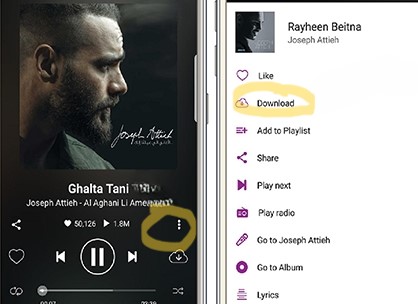
How official downloads work(desktop)
- Subscribe to Anghami Plus or Gold (free users cannot download at all).
- Open Anghami on mobile, desktop, or the web player at
play.anghami.com. - Go to a song, album, or playlist and tap the Download icon.
- Wait for completion. The songs are now available offline inside Anghami.
You can choose streaming and download quality in Settings → Music Quality. Higher quality is better if you have the space and data.
What you actually get
Downloaded songs are saved as encrypted files in the app’s storage. File names are unreadable hashes. The app checks your subscription status and login before playing them.
Practical limits:
- You cannot copy downloads to other apps or devices—copied files will not work.
- Downloads disappear when your subscription expires, when you log out, when you switch devices without re-downloading, or when you clear app data.
The official method is fine if your only goal is offline listening inside Anghami. It does not solve “Anghami to MP3” where you need standard files you control.
The Only Working Method: Record Anghami to MP3
Because Anghami downloads are DRM-locked, all realistic third-party solutions do the same thing:
They record the audio that Anghami plays on your device and save it to MP3. They do not decrypt or download Anghami’s files.
What this means:
- Real-time recording: A 3-minute song takes 3 minutes to record. There is no one-click “convert entire playlist” button that finishes in seconds.
- Quality chain: Audio flows through original → Anghami streaming compression → system output → recording → MP3 file. Each step loses some quality. Aim for high streaming quality + high recording bitrate rather than expecting true lossless.
- System audio only: Recorders capture whatever your computer is outputting. System sounds, notifications, and other apps can leak into the recording.
- Personal use only: Recording streams for your own offline listening or backup is commonly treated as personal use in many regions. Sharing, uploading, or selling those recordings typically violates copyright and Anghami’s terms.
From here, the main decision is: use a user-friendly recorder that automates track splitting and metadata, or use a free tool like Audacity with more setup and manual work.
For most people, Cinch Audio Recorder works well. According to its documentation, it records system audio directly, splits tracks automatically, and uses audio fingerprinting to add title, artist, and cover art. The trial version lets you record up to 9 songs—enough to confirm it works before deciding on a license. A lifetime license costs just $35.95—less than a year of Anghami Plus, but you get to keep the files forever.
Step-by-Step: Record Anghami to MP3 with Cinch Audio Recorder (Desktop)
For most people who want a working solution without learning audio routing, Cinch Audio Recorder Ultimate is the most straightforward path. It runs on Windows and macOS and focuses on two things: recording what your computer is playing (including Anghami streams), and automatically identifying songs with correct ID3 tags, album art, and lyrics.
Note: Cinch records the audio Anghami plays. It does not log into your Anghami account or decrypt Anghami’s encrypted files.
1. What you need
- A Windows 10/11 (64-bit) PC or a recent macOS machine
- Stable internet for Anghami streaming and Cinch’s metadata lookup
- Access to Anghami Web Player (
play.anghami.com) or Anghami’s desktop app - Enough storage for recordings (music in 320kbps MP3 adds up)
2. Install Cinch Audio Recorder
- Download Cinch Audio Recorder Ultimate from the official website.
- Install using the standard installer for Windows or macOS.
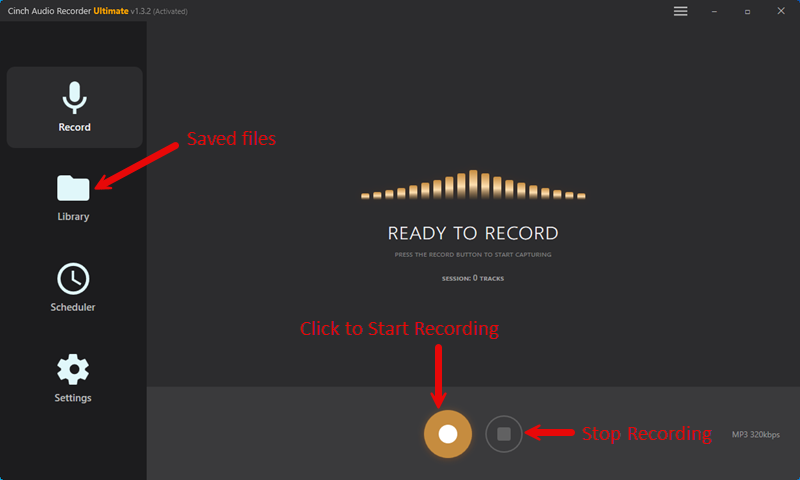
- Launch Cinch. The interface has a Record tab and a Library tab.
3. Configure recording quality
In Cinch’s settings (gear icon or menu button):
- Recording device — Set to Auto or select your main playback device (e.g., “Speakers / Headphones”).
- Output format and quality — Choose MP3, set bitrate to 320kbps and sample rate to 44.1 kHz or 48 kHz. Optionally enable Keep WAV if you want a lossless copy.
- Output folder — Pick an easy-to-find folder (e.g.,
Music/Cinch Recordings). - Automatic song detection — Turn on Auto-Identify so Cinch uses audio fingerprinting to recognize songs. Enable automatic cover art and lyrics download if available. Set Min Song Duration (e.g., 45–60 seconds) so short ads and notification sounds are discarded.
These options are what make Cinch more convenient than generic audio capture tools: it delivers finished, tagged MP3 files instead of raw recordings you must trim manually.
4. Prepare Anghami for clean recording
- Open Anghami Web Player in a browser or the desktop app.
- Log into the account with the music you want (free or Plus both work for streaming).
- In Anghami Settings → Music Quality, set streaming quality to the highest available.
- Queue up the playlist, album, or songs you want.
- Mute or close other apps that might play sounds (messengers, email notifications, games).
5. Record Anghami with Cinch
- In Cinch, go to the Record tab.
- Click the gold Recording button to arm the recorder.
- Switch to Anghami and start playing your playlist or album.
- Cinch detects playback and starts capturing.
- Let the songs play uninterrupted. Recording happens in real time—a 3-minute song needs 3 minutes to record.
- When finished, click Stop in Cinch.
As songs finish, Cinch splits them into separate tracks in the Library tab, uses audio fingerprinting to identify each song’s title, artist, and album, and downloads and embeds cover art and lyrics. By the time recording is done, you usually have organized MP3 files rather than a single long recording.
6. Review, edit, and export
In the Library tab:
- Check that each track has the correct title, artist, and album.
- If a track is mis-identified: right-click and choose Re-Identify to retry, or Edit Info to manually fix metadata.
- Use the built-in player to preview tracks.
- Delete short fragments that are obviously ads or notification sounds, or use the Clean short clips option.
- Right-click any song and choose Open Folder to access the actual MP3 file.
Those MP3 files are normal audio files—not tied to Anghami. They will still exist if you cancel your subscription or uninstall the app. You can play them in any music player, transfer them to your phone, or burn them to a CD.
When Cinch is a good fit
Use Cinch if you want to convert whole playlists or albums without manually cutting and naming each track, and you care about correct metadata and cover art. It is less ideal if you only need one or two songs and are comfortable with a free tool that requires more manual steps.
Alternative Recording Tool
Free Option: Recording Anghami with Audacity
If you cannot or do not want to pay for a dedicated recorder, Audacity is a free, open-source audio editor that can record system audio. It is powerful but not designed as an Anghami-specific solution—expect more setup and manual work.
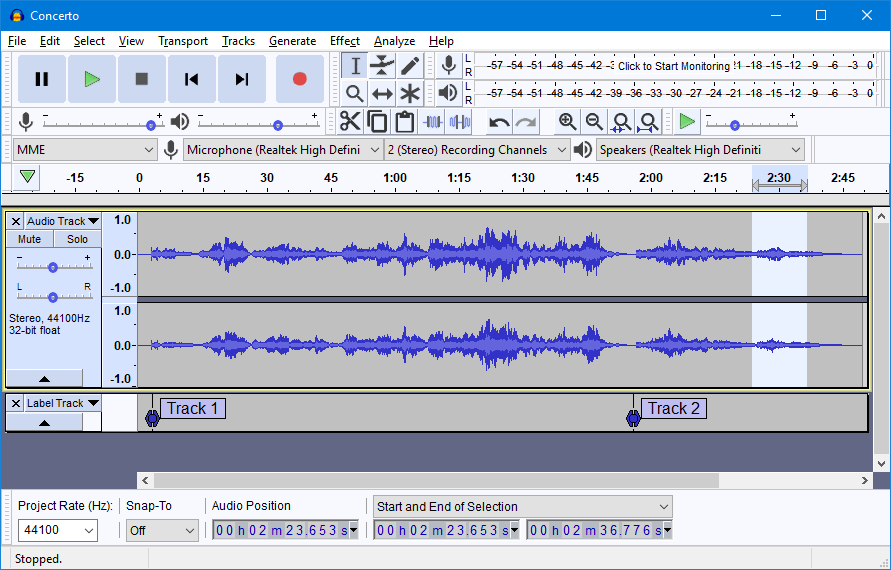
Audacity can record audio from your computer, show the waveform and let you cut, fade, and clean up recordings, and export to MP3, WAV, FLAC, and other formats. But it cannot automatically detect where one track ends and the next begins, cannot automatically identify songs or fill in metadata and cover art, and does not guarantee easy system-audio capture on every device without extra configuration.
Using Audacity as your “Anghami to MP3” path is free in money but expensive in time. It is best for technically comfortable users who only need a few songs and do not mind manual editing.
Basic workflow with Audacity
Step 1: Install Audacity Download and install from the official website.
Step 2: Set up system audio recording (Windows)
- Right-click the speaker icon in your taskbar → Open Sound settings → Sound Control Panel (on the right side).
- Go to the Recording tab. If you see “Stereo Mix”, enable it and set it as the default recording device.
- If you don’t see “Stereo Mix”, your audio driver may not support it. Download a free tool like VB-Cable Virtual Audio Device (vb-audio.com), install it, then set “CABLE Output” as your playback device and “CABLE Input” as your recording device in Audacity.
Step 3: Configure Audacity
- Open Audacity.
- Select your recording device from the dropdown (either “Stereo Mix” or “CABLE Input”).
- Set the project rate to 44100 Hz.
Step 4: Record
- Click the red Record button in Audacity.
- Switch to Anghami and play your song.
- When the song ends, click the yellow Stop button in Audacity.
Step 5: Edit and export
- Trim silence from the beginning and end using the selection tool.
- If you recorded multiple songs, place the cursor between tracks and use Edit → Clip Boundaries → Split to separate them.
- Go to File → Export → Export as MP3.
- In the export dialog, manually enter the song title and artist—these become your MP3 metadata.
If that sounds like too much work, that is exactly why dedicated tools like Cinch exist. Audacity is a no-cost fallback, not the primary method for a large music library.
Transfer Recorded MP3s to Your Phone or Car
Once you have recorded Anghami tracks as MP3 files, they behave like any other audio file.
Android phones
- Connect your Android phone to your computer with USB.
- On the phone, choose File transfer (MTP) mode if prompted.
- Open the phone’s storage in file explorer on your computer.
- Locate or create a Music folder.
- Copy your recorded MP3 files into that folder.
- Safely disconnect. Open your music app on Android—it should show the new tracks.
iPhone
- Connect your iPhone to your computer.
- On macOS: open Finder, select your iPhone, go to Music, drag MP3 files into the sync area, and apply changes.
- On Windows: install iTunes, add MP3 files to the library, enable Sync Music for your iPhone, and click Apply/Sync.
- After sync, the songs appear in the Music app on your iPhone.
Car stereos and MP3 players
- Insert a USB drive or SD card into your computer.
- Format it to a file system your car or MP3 player supports (often FAT32—check the manual).
- Copy MP3 files onto the drive, optionally organizing into folders.
- Safely eject and plug into the car stereo or MP3 player.
Troubleshooting Common Recording Problems
Recording streaming audio is usually straightforward, but a few issues show up across tools.
Recording is silent or very quiet
Likely causes: the recorder is set to the wrong recording device, system volume is too low, or headphones are selected but the recorder is listening to a different output.
What to try:
- In the recorder’s settings, explicitly choose the same device you are using to listen to Anghami (e.g., “Speakers (Realtek)”).
- Make sure system volume is at 50–80% and Anghami’s in-app volume is not muted.
- If using Bluetooth headphones, try switching playback to computer speakers temporarily.
System sounds or notifications are in the recording
Because recorders capture system audio, they will also capture notification pings, chat messages, and other sounds.
How to reduce this:
- Close or mute noisy apps before recording.
- Enable Do Not Disturb or Focus mode on your operating system.
- In Cinch, set a Min Song Duration so very short sounds are automatically discarded.
Songs are split incorrectly or not at all
Automatic track splitting depends on silence detection and media control signals. Problems can happen when songs crossfade or have long intros/outros.
Mitigations:
- In Cinch, experiment with Silence Threshold and Silence Duration settings.
- For albums with crossfades or continuous mixes, accept that you may end up with a single long recording and manually split it later.
Song identification or metadata is wrong
Metadata is based on audio fingerprint databases, which are not perfect.
Steps:
- Right-click the track in Cinch and choose Re-Identify.
- If that fails, use Edit Info to enter correct metadata manually.
- For rare, live, or heavily remixed tracks, expect manual editing—databases are strongest on mainstream releases.
FAQs
Why did my Anghami downloads disappear?
Downloads are tied to your Plus or Gold subscription and account state. They can disappear when your subscription expires, when you log out, when you switch devices without re-downloading, or when you clear app data or reinstall. If you need files that survive beyond your subscription, recording to MP3 is the only practical path.
Can I download Anghami music for free?
Officially, no—offline downloads require a paid subscription and remain locked inside the app. Free tools like Audacity can record Anghami’s audio, but they do so in real time and require more configuration. Online “converters” that claim to handle Anghami URLs typically do not work. You can avoid paying for a recorder, but you cannot avoid paying with time and effort if you want a fully free solution.
What is the best quality setting for recording?
In Anghami, set playback quality to the highest available in Settings → Music Quality. In your recorder (e.g., Cinch), set output to MP3 320kbps or WAV. Avoid additional audio effects or “enhancements” from your sound card or OS—they can color the sound.
Is Anghami better than Spotify if I care about MP3 files?
For the goal of owning MP3 files, neither service is designed for that—both are streaming platforms with app-locked downloads. Anghami is strong for Arabic and MENA-region music; Spotify has a larger international catalog in many regions. Your choice of streaming service matters less than your choice of recording workflow.
What To Do First
- Accept the limitation. Anghami does not offer MP3 downloads—official downloads are encrypted and app-locked.
- Decide your trade-off. If you value convenience, start with Cinch Audio Recorder and use the trial to confirm it works. If you must stay free and only need a few songs, prepare to configure Audacity and handle manual cutting and tagging.
- Test with one song. Record a single track, check that it plays correctly on your phone or car stereo, then queue longer playlists.
This avoids the two biggest time-wasters: subscribing to Anghami Plus expecting real MP3 downloads, and chasing “online converters” that do not actually support Anghami.