Quick Summary
Everand audiobooks disappear when your subscription ends. Learn why official downloads won't save them, and how to record audiobooks for permanent access
Everand’s “download” button doesn’t give you files you can keep—it stores encrypted cache that only works while your subscription is active. If you’re planning to cancel and want to preserve specific audiobooks, the only working approach is recording the audio as it plays. This guide explains what the official download actually does, when it’s useful, and how to record audiobooks to MP3 before your access expires.
What You Can (and Can’t) Download from Everand
When you tap the download button in the Everand app, you’re not getting a file you own. You’re downloading an encrypted cache that can only be played through the Everand app while your subscription is active. This is fundamentally different from buying an MP3 or downloading a podcast—those are files you can move between devices, back up, and keep forever.
Many users learn this the hard way—they assumed “download” meant permanent ownership, only to find their saved audiobooks completely inaccessible after canceling.
What Happens When Your Subscription Ends
The moment your subscription expires, access stops. Free trial users lose access immediately upon cancellation—no grace period. Paid subscribers can listen until the current billing cycle ends, then everything stops. Even audiobooks you “unlocked” with monthly credits become inaccessible.
Critical point: If you’ve already canceled and lost access, recording won’t work—there’s nothing to record. This must be done while your subscription is still active.
Why You Can’t Directly Download Audiobook Files
Everand uses Digital Rights Management (DRM) encryption to protect publisher content. This isn’t unique to Everand—Audible, Spotify audiobooks, and most streaming platforms use similar protection. The difference is that some platforms (like Audible) let you purchase permanent licenses, while Everand is subscription-only access.
Third-party “downloader” tools claiming to strip DRM from Everand audiobooks generally fall into two categories:
Tools requiring login credentials ask for your Everand username and password. The security risks include credential harvesting and potential account bans for violating terms of service. Tools that don’t work—Epubor, one of the most well-known DRM removal tools, has explicitly stated they do not support Everand/Scribd audiobooks. Most other “Scribd downloader” tools are either outdated or marketing pages with no working software.
The working approach is different: instead of trying to decrypt Everand’s protected files, you record the audio as it plays on your computer. This captures the content without needing to break encryption or share your login credentials.
Method 1: Official Offline Listening (Requires Active Subscription)
If you just want offline access while your subscription is active, the built-in download feature works fine. Open the Everand app, find the audiobook, tap the download icon, and wait for it to complete. You’ll find your downloads in the “Downloaded” section of your library.
Limitations: Official downloads stop working the moment your subscription ends. You cannot move files to other apps or back them up. There’s no export option. This method only makes sense if you plan to keep your subscription indefinitely.
Method 2: Record Audiobooks with Audio Recording Software (Keeps After Cancel)
Recording captures the audio signal as it plays through your computer. Instead of decrypting protected files, you’re creating a copy of what you hear. No account credentials needed—you don’t enter your Everand login into third-party software. It works with any streaming source—the same method works for Everand, Audible web player, or other platforms. The output is MP3, M4A, or other formats that work on any device. Once recorded, the file is yours independently of Everand.
The trade-off is time. Recording happens in real-time. A 10-hour audiobook requires at least 10 hours to record.
Recommended Tool: Cinch Audio Recorder Ultimate
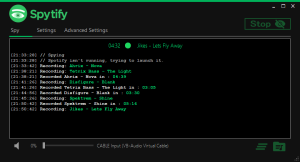
For most users, a dedicated audio recorder simplifies the process. Cinch Audio Recorder Ultimate is a desktop application (Windows and Mac) that handles system audio recording. At $35.95 for a lifetime license, it costs less than purchasing two or three audiobooks individually. The free trial version lets you record up to 9 songs or audio clips at no cost—enough to test recording quality and workflow with your setup.
Cinch records what’s playing through your speakers (not microphone input), can split recordings at chapter breaks with proper settings, attempts to identify and tag recordings with title and artist, and outputs to MP3, AAC, FLAC, or WAV.
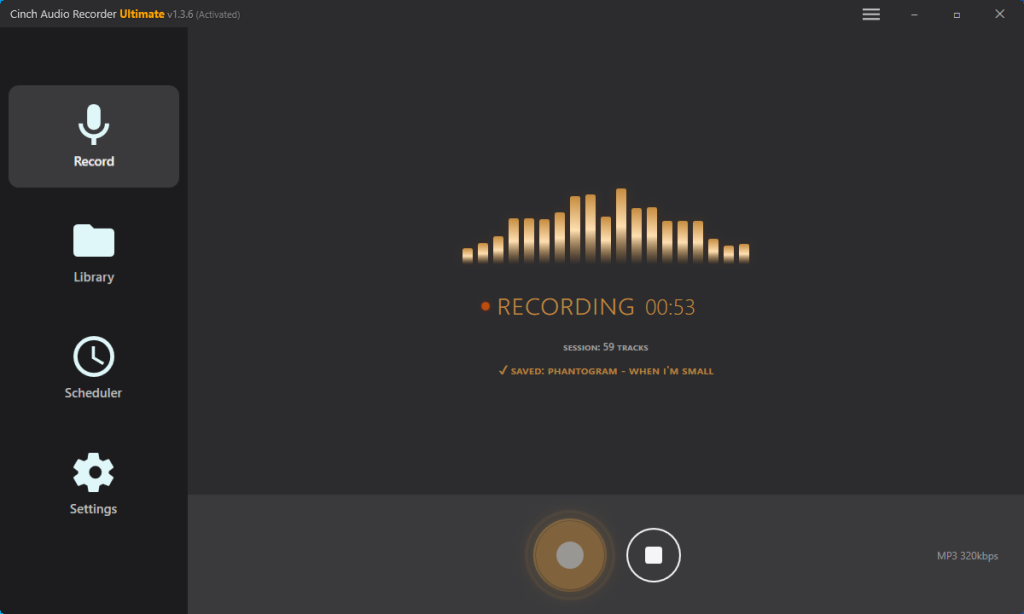
Cinch is designed primarily for music recording. When recording audiobooks, you’ll need to adjust settings to prevent the software from splitting your recording into hundreds of small files.
Recording Your First Audiobook
Before you start—critical prerequisites:
- Confirm your subscription is still active: Log into Everand in your browser and verify you can play the audiobook. Recording only works while you have access.
- Check your billing cycle: If you’ve already canceled, you have until the period ends. If you haven’t canceled yet, don’t cancel until recording is complete.
- Plan the time: A 10-hour audiobook needs 10 hours of recording. Start when you have a long uninterrupted window—evenings, weekends, or while you’re away.
Step-by-step recording process:
Step 1: Configure critical settings first (this prevents the “200 tiny files” problem)
Launch Cinch and open Settings:
- Go to Expert Mode
- Disable SMTC (System Media Transport Controls)—this stops the software from trying to identify “songs”
- Find silence detection or split settings and set the threshold to exactly 60000ms (60 seconds)
- Without these changes, a typical audiobook will be split into 200+ small files
Step 2: Prepare your computer
- Disable sleep mode: Windows: Settings > System > Power > set sleep to “Never” when plugged in
- Plug into power: Don’t rely on battery for multi-hour recordings
- Close unnecessary apps: Free up memory and CPU
- Use Chrome, Firefox, or Edge: These work most reliably with Everand
Step 3: Start the recording
- Click the round Record button in Cinch (it’s in the main window, usually at the top or center)
- Switch to your browser and start playing the audiobook in Everand
- Keep the browser tab visible on screen—don’t minimize it or cover it with other windows
- Check after 30-60 minutes: you should see the waveform moving in Cinch’s interface
Step 4: When finished
- Click the Stop button in Cinch
- Find your file in the output folder (check Settings to see where files are saved)
- Verify it works: Open the file and listen to the beginning, middle, and end
- Check the file size: a 10-hour audiobook should be 100-300MB depending on quality settings
What success looks like: One continuous audio file (or a few large files if you recorded in sessions) that plays from start to finish without gaps.
Organizing Your Recorded Audiobooks
After recording, you’ll have one large audio file (or several if you recorded in segments). Rename the file with a consistent naming convention like “Author – Book Title (Year).mp3”. Add metadata—right-click the file and open Properties (Windows) or Get Info (Mac), then add title, author (in the Artist field), year, and genre (Audiobook). Add cover art if available—right-click the audiobook in Everand and save the cover image.
For chapter markers on long audiobooks, tools like Mp3Tag or Adobe Audition can add them. This requires more effort but makes navigation much easier.
Back up your recordings to an external drive or cloud storage. These files work independently of Everand—protect them like any valuable data.
Method 3: Free Alternative – Audacity (Technical Users Only)
Note for most readers: This section is for technical users who prefer free software and don’t mind complex setup. If you want the simplest path, stick with Method 2 (Cinch) above.
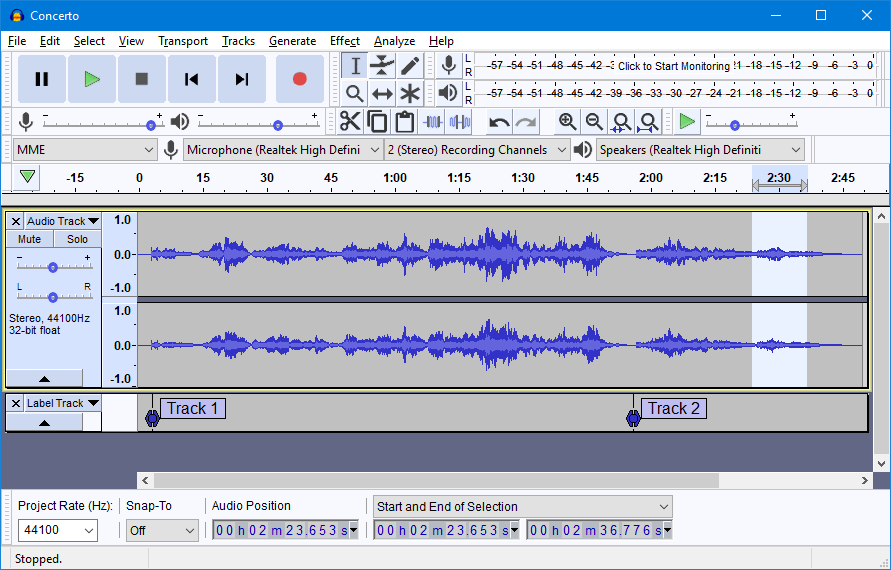
Audacity is free and open-source, but requires significant technical configuration. It doesn’t record system audio out of the box—you need to configure loopback recording, which varies by system. Windows users need WASAPI loopback drivers; Mac users need additional virtual audio software like BlackHole.
Why this is harder: No automatic silence detection, no auto-tagging, manual export for every file, and higher failure rates due to driver configuration issues. Only choose this if you’re comfortable troubleshooting audio driver settings.
Basic workflow: Install Audacity →Configure loopback input →Record while playing in Everand →Export as MP3 →Manually add metadata.
For detailed Audacity setup instructions, see the Audacity manual on recording desktop audio.
Troubleshooting Common Recording Issues
Recording Stops Unexpectedly
If your recording cuts off before the audiobook finishes, check a few things.
Browser throttling: Modern browsers reduce resources for background tabs. Keep the Everand player tab visible on screen. Don’t minimize the browser or switch to another application for extended periods.
Sleep mode: Even with sleep disabled, some computers enter “hybrid sleep” or reduce CPU power. Verify your power settings are set to “High Performance” and that both sleep and hibernate are disabled.
Network issues: If Everand’s player needs to buffer and your internet connection hiccups, playback may pause. A stable wired connection is more reliable than WiFi for long sessions.
System audio device changes: Plugging in or unplugging headphones mid-recording can cause the audio stream to redirect. Keep your audio devices consistent throughout the recording session.
Poor Audio Quality or Muffled Sound
Recording quality depends on your system’s audio pipeline, not just the recording software.
Windows audio enhancements interfere: Some systems apply “audio enhancements” that degrade recording quality. To disable, right-click the speaker icon in the taskbar, select “Playback devices” or “Sound settings,” find your default playback device, right-click and select Properties, look for an “Enhancements” or “Spatial sound” tab, and disable all enhancements.
Wrong recording input: Make sure you’re recording the loopback/system audio, not the microphone. Microphone recordings capture room noise and sound distinctly worse.
Source quality limitations: Everand streams audiobooks at lower bitrates than downloaded purchases. Our testing shows streaming quality around 32kbps—significantly compressed compared to Audible’s 64-128kbps downloads. Your recording can’t be higher quality than the source stream.
Audiobook Split into Too Many Small Files
This is the most common failure for audiobook recording. Software designed for music assumes silence = track end. Narrators pause naturally between paragraphs, scenes, and chapters. Without adjustment, each pause triggers a new file.
In Cinch, go to Settings > Expert Mode and set the threshold to exactly 60000ms (60 seconds). In Audacity, don’t use the “Sound Activated Recording” feature for audiobooks. Some users prefer to record completely unsplit, then manually add chapter markers later.
If you’ve already recorded and ended up with hundreds of files, use tools like “Mp3 Merger” or Audacity’s “Concatenate” feature to join them back together. This adds significant post-processing time.
Missing Metadata or Chapter Markers
Dedicated audio recorders use music databases to identify songs. Audiobooks don’t exist in these databases, so automatic tagging almost always fails.
For Cinch users, after recording, right-click the file and choose “Edit Tags” to manually enter the audiobook’s full title, the author’s name (some prefer to put the narrator here), “Audiobooks” or a series name for the album field, publication year, and genre as Audiobook or Spoken Word.
For chapter markers, MP3DirectCut (free) can add chapter markers to MP3 files, or Adobe Audition or similar audio editors can create chapterized audiobooks. This is optional but makes long audiobooks much easier to navigate.
Alternatives to Consider Before Recording
If you want permanent ownership without the complexity of recording, purchasing audiobooks directly is the straightforward option.
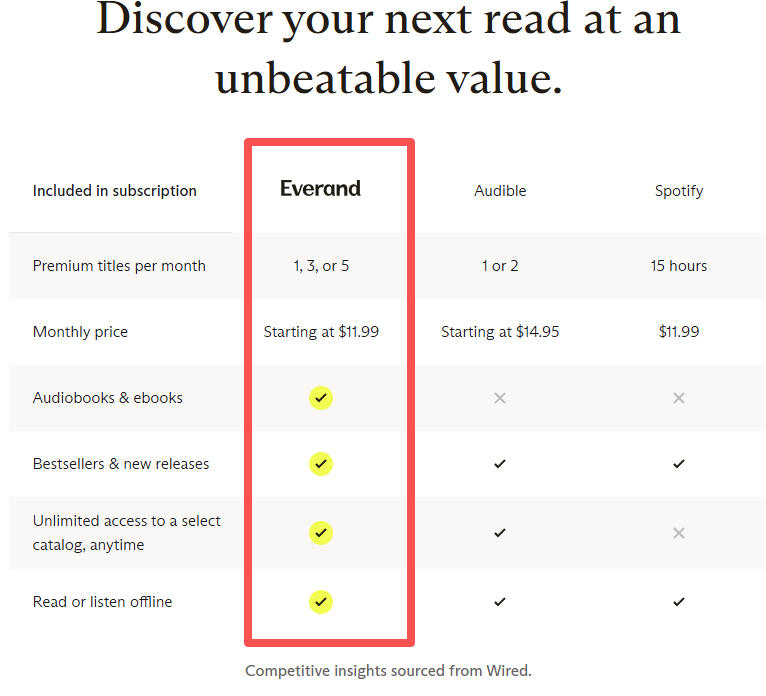
Audible offers individual purchase prices typically $15-35 per audiobook, subscription credits at $14.95/month for one credit (essentially one audiobook), files you download that are yours to keep even after canceling, higher audio quality than streaming (usually 64-128kbps), and sync across devices, bookmarks, and listening position.
Libro.fm is an independent alternative that supports local bookstores with your purchases, offers similar pricing and credit systems to Audible, provides DRM-free files for some publishers, and emphasizes author and narrator support.
The trade-off: Buying every audiobook you want to listen to is significantly more expensive than a streaming subscription. If you listen to 4+ audiobooks per month, Everand’s subscription model costs less than individual purchases. If you only want to permanently own 2-3 specific books, purchasing them directly may cost less than a year of Everand plus recording software.
If budget is tight, check if your local library offers the audiobook through Libby or Hoopla—free borrowing, though you lose access after the loan period ends.
Recording from Everand is worth considering when you’re already an Everand subscriber planning to cancel, you have a few specific audiobooks you want to keep, you’ve already consumed most of your monthly credits, you don’t want to pay $20-35 per audiobook to purchase them, and you’re comfortable with real-time recording and some technical setup.
Recording is less practical when you want to preserve your entire listening history (could take hundreds of hours), or you need perfect audio quality (recording will be slightly degraded from the already-compressed stream).
What To Do Next
Decide which audiobooks you’ll actually replay. For 1-2 titles you’ll revisit often, buying directly from Audible or Libro.fm ($30-50 total) may cost less than recording software plus your time. For 3-10 titles, the recording approach becomes worthwhile—start with the Cinch free trial to verify it works on your system.
The deadline matters more than the method: recording only works while you still have an active subscription. If canceling is already on your calendar, start your first recording session this week—before access disappears.