Quick Summary
Pro downloads stopped playing? They're encrypted. Recording won't restore them, you can capture free-tier songs as standard MP3s. Start with Audacity + WASAPI.
Your Pro subscription ended and the downloads stopped playing. The files are still on your device, but they’re encrypted and locked to the app. Recording won’t bring those old downloads back—nothing will, except re-subscribing. It captures whatever you can stream in the free tier and saves it as a standard MP3 that works on any device.
Start with Audacity and WASAPI loopback on Windows. It’s free, records digital audio from your system (no background noise), and doesn’t ask for your JioSaavn login. You’ll split tracks manually, but that’s fine for a first playlist. If you’re doing this weekly and hate the busywork, paid tools like Cinch become worth it.
Pro Downloads vs. Recording: What You Can and Can’t Get Back
Pro downloads were never really yours—they were encrypted files locked to the app and your subscription status. When Pro expires, those files become unplayable. Re-subscribing restores them via “Sync Downloads,” which proves they were always there, just inaccessible.
Recording doesn’t recover expired Pro downloads. It captures whatever you can currently stream in the free tier—ads, 128kbps quality, and all—and saves it as a standard MP3 you control. Trade-offs: ads between songs, 128kbps instead of 320kbps, real-time recording, and manual track splitting.
The files you create are permanent and portable. They work on any device—car USB drives, old MP3 players, computers without the app. They don’t vanish when subscriptions lapse. You never enter your JioSaavn login into sketchy third-party tools.
If you want the original 320kbps quality back, re-subscribe. Otherwise, keep reading for how to create permanent files from the free tier.
Free Method: Record JioSaavn with Audacity and WASAPI Loopback
Audacity is free, open-source software for Windows, Mac, and Linux. Setup takes about 15 minutes with manual track splitting—but it’s the safest free starting point.
Step 1: Download Audacity
Get it from https://www.audacityteam.org/download/ — avoid third-party sites bundling software.
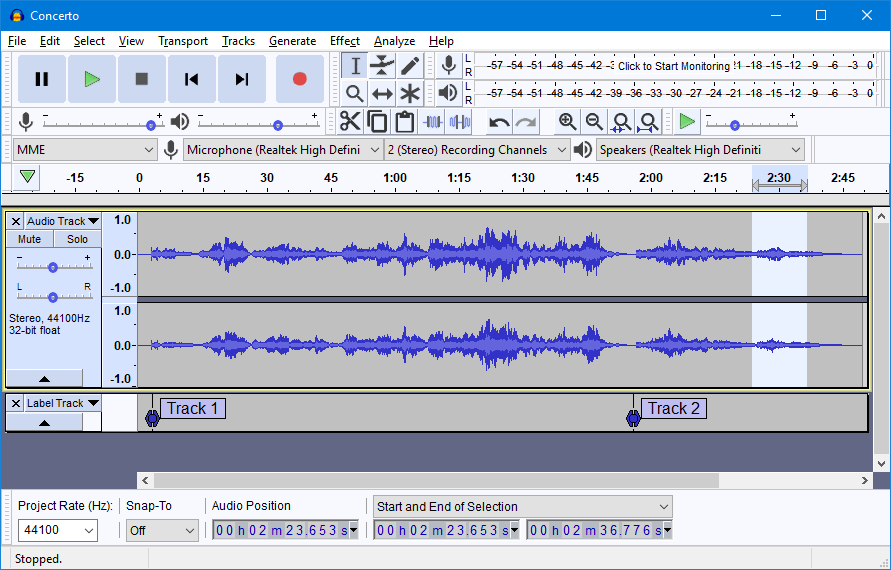
Step 2: Configure WASAPI loopback (Windows)
Open Audacity and go to Edit → Preferences → Devices:
- Set Audio Host to Windows WASAPI
- For Recording Device, pick your output device with “(loopback)” in the name
WASAPI loopback captures the digital audio stream before it hits your speakers—no background noise. No loopback option? Check troubleshooting.
Step 3: Set recording quality
Edit → Preferences → Quality. Set Default Sample Format to 24-bit and Sample Rate to 48000 Hz. Your exported MP3s will still be 128kbps (free tier), but this avoids compounding quality loss.
Step 4: Disable Windows audio enhancements
This is the #1 reason recordings sound muffled. Right-click speaker icon → Sounds → Playback tab → right-click your default device → Properties → Enhancements → check “Disable all enhancements” → Apply → OK. Also disable OEM audio software like Dolby Access or Waves MaxxAudio.
Step 5: Use the JioSaavn web player
Open JioSaavn in your browser at www.jiosaavn.com. The Windows desktop app has known issues; the web player works better.
Step 6: Record your first song
- Click the red Record button in Audacity
- Play the song in your browser
- Click Stop when done
Step 7: Split tracks manually
After recording multiple songs:
- Click where silence starts between songs
- Press Ctrl+I to create a label, or use Edit → Remove Special → Split Delete
- Go to File → Export → Export Multiple → choose “MP3 Files” with “Using Label/Track Names”
Step 8: Export with metadata
Add ID3 tags (title, artist, album) in the export dialog. Manual work—if you’re doing this weekly and hate it, that’s when paid automation becomes worth it.
Test first: Record 30 seconds, export it, and listen on your playback device. Catches setup mistakes before you waste an hour.
Quick Quality Check Before Recording a Playlist
Run a 30-second test before committing to a full playlist.
Listen for:
- Silence: Wrong input device. You need a loopback device, not a microphone. Your playback device must match the loopback source.
- Muffled sound: See Step 4—audio enhancements are still active.
- Very low volume: Check Audacity’s meter while playing. Peaks should hit -6dB to -3dB. Adjust the recording slider or system volume.
Decision point: If the test sounds clear, record your playlist. If it fails any checks, jump to troubleshooting.
Automated Alternative: Cinch Audio Recorder
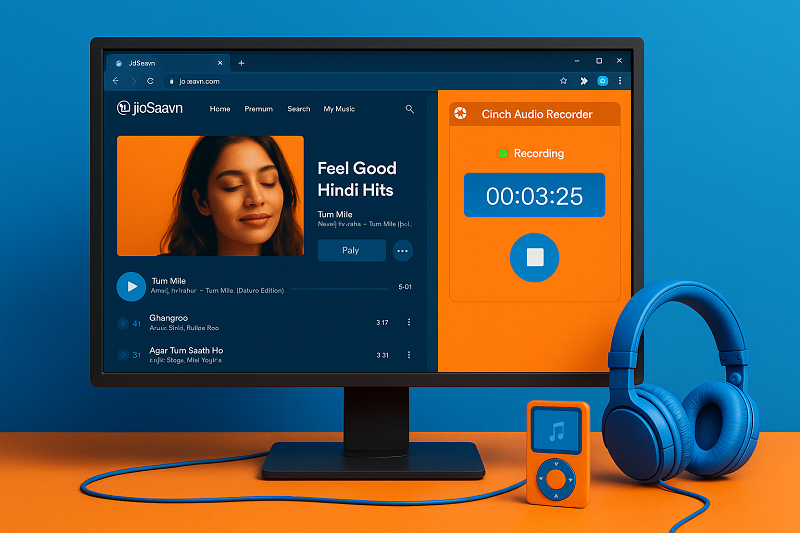
Cinch records system audio like Audacity, but automates track splitting and metadata.
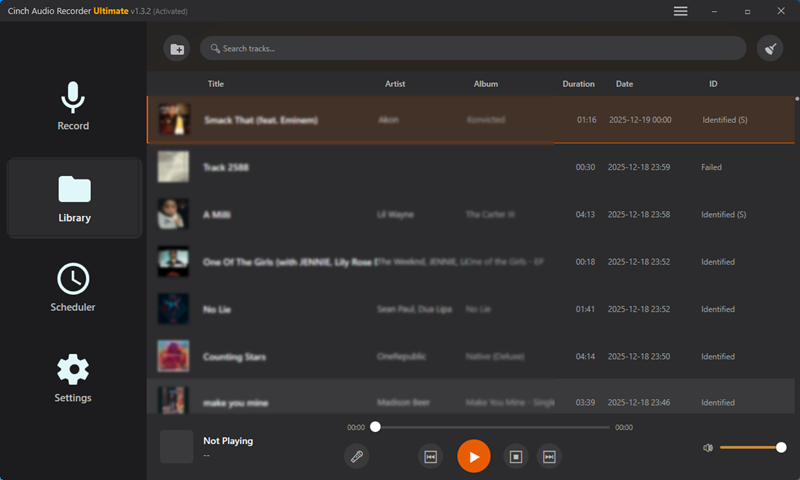
It uses Windows SMTC to detect song changes, giving cleaner track boundaries than silence detection. After recording, it pulls title, artist, album, and cover art from online databases and embeds them in the file.
Install Cinch, point it at your browser, hit Record, then play your playlist. You get individual MP3s without manual busywork.
Cinch costs around $36 one-time. The free trial lets you record 9 full songs—enough to verify your setup and decide if automation is worth it.
Worth it if you’re recording 10+ songs per session regularly and don’t want to manually split tracks or add tags. If you only need a few playlists or don’t mind the manual work, stick with the free Audacity. But if you value your time, grab the Cinch 9-song free trial to see how much easier automated recording can be.
Key point: Cinch doesn’t improve quality over Audacity. It captures the same system audio. You’re paying for time saved, not better sound.
When Your First Recording Fails
Nothing showed up
Wrong input device—it should say “(loopback)” not “microphone.” Also check that audio is actually playing.
Quick test: Play a YouTube video and watch Audacity’s meter. The bars should jump with the music.
Ads keep showing up
That’s the free tier. Pause recording during ad breaks if you want clean tracks.
Too quiet or distorted
Check the meter while playing. If it barely moves, turn up the recording slider. If it’s hitting the red, turn it down—once audio clips, that distortion is permanent.
No loopback option
Look for “Stereo Mix” in the Recording tab (right-click empty space to show disabled devices if needed). Virtual audio cables like VB-Audio work but add complexity. Most Windows 10/11 computers from the last few years have loopback built in.
When Recording Isn’t Worth the Effort
You want original Pro quality (320kbps) and no ads
Re-subscribe to Pro. Recording the free tier gives you 128kbps with ads. Pro restores the original 320kbps downloads without ads—around ₹99/month or ₹299/year in India, $5.99/month or $49.99/year internationally.
You need hundreds of songs quickly
Look at YouTube Music Premium or Spotify Premium with offline downloads. Manual recording happens in real-time—recording 100 songs means 5+ hours of work.
You want metadata without manual work, and won’t pay
Use MusicBrainz Picard after recording. It’s free—it fingerprints your audio files and fetches tags automatically.
Your device doesn’t support JioSaavn
Switch to Spotify or YouTube Music—both have better device support across platforms.
Recording IS worth it when: You need permanent files for unsupported devices (car USB, old MP3 player), won’t use sketchy downloader sites, and want a free workflow for occasional playlists.
FAQs
Can I record without paying for Pro?
Yes. The free tier works—you’ll hear ads unless you pause during ad breaks. Having Pro makes recording cleaner, but it’s not required.
Will JioSaavn ban my account?
No. Recording happens at the OS level, not within the app. JioSaavn can’t detect it.
Can I record on Mac?
Yes. Use Audacity with Core Audio (built into macOS 14.2+) or Soundflower for older versions.
What export quality?
Export as MP3 at 320 kbps. The source will be 128kbps (free tier) or 320kbps (Pro), but using a higher export bitrate avoids compounding quality loss. For lossless archives, use WAV or FLAC—files will be 5-10x larger.
Why not use the JioSaavn Windows app?
JioSaavn’s support team acknowledges the Windows desktop app has issues. The web player is more stable.