Quick Summary
Shazam identifies songs but won't download them. Here are real methods to get MP3 files from your Shazam library—with honest quality and reliability trade-offs.
You just Shazam’d a song you love. The app tells you the title and artist. You tap around looking for a download button—and there isn’t one.
Shazam is a music identification service, not a music store. It will never give you an MP3 file directly. Every method below is a workaround, and each comes with trade-offs.
The Core Problem: Shazam Doesn’t Give You Files
Shazam, owned by Apple since 2018, uses audio fingerprinting to identify songs playing around you. The app captures a few seconds of audio, matches it against a database, and returns the song title, artist, and links to streaming platforms.
Here’s what you actually get from Shazam:
- Song title, artist, and album information
- A 30-second preview clip (you can’t play full songs)
- Links to Apple Music, Spotify, YouTube, and other streaming services
- A CSV export of your entire Shazam library
What Shazam does NOT provide: any download button, MP3 file, or way to own the song. That’s intentional—Shazam drives traffic to streaming platforms, it doesn’t distribute music.
Method 1: Connect to Streaming Services (Official, But You’re Renting)
Shazam integrates with Apple Music, Spotify, and Deezer. When connected, every song you identify gets added to a “My Shazam Tracks” playlist.
Setup: Open Shazam → Settings → Connect next to your service → Sign in.
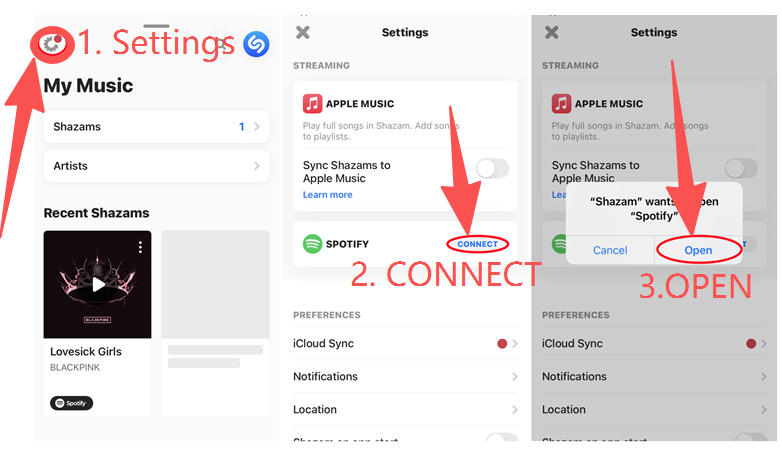
Here’s what most tutorials skip: connecting is free, but downloading for offline playback requires a paid subscription ($10.99/month for Apple Music, Spotify, or Deezer).
If you already pay for one of these, the integration is convenient. Your Shazam discoveries sync automatically, and offline downloads work. Quality is good (up to 256kbps AAC for Apple Music, 320kbps for Spotify).
But the files are DRM-protected and locked to the app. Cancel your subscription, and your entire library disappears. You’re renting access, not owning files.
Use this if: You already have a streaming subscription and don’t mind being locked in.
Skip this if: You want permanent MP3 files or don’t want another monthly bill.
Method 2: iOS Shortcuts (Free, Breaks Often)
If you’re on iOS 14+ or macOS 12+, you can use Apple’s Shortcuts app to automate a Shazam-to-MP3 workflow. Community-created shortcuts search YouTube for the identified song and extract the audio.
Setup:
- Visit RoutineHub.net or Chrunos.com and search for “Shazam MP3” or “Music Downloader”
- Tap “Get Shortcut” → “Add Shortcut”
- Open Shortcuts app, tap the shortcut, grant permissions
- Run it on a song—ideally it identifies, searches YouTube, and saves an MP3
Reality: These shortcuts break constantly. Common errors include “server cannot be found” (YouTube API down or blocked), “conversion error” (data parsing broke), and VPN interference. Less popular songs fail more often because the shortcut can’t find them on YouTube.
Quality is capped at YouTube’s audio bitrate—typically 128-256kbps.
Use this if: You’re on iPhone, want free, and can tolerate failure.
Skip this if: You need reliability or care about audio quality.
Method 3: Android Apps (Quick, 128kbps Ceiling)
Android users can install apps like ShazaMusic that attempt to download identified songs. These aren’t on Google Play (policy violation), so you’ll need to download APKs from APKPure or APKMirror.
How it works: The app searches YouTube and downloads audio as MP3. Quality is almost always 128kbps—that’s YouTube’s limit.
Security note: Since these apps bypass official stores, there’s no malware vetting. Only download from reputable APK sites and avoid apps requesting unnecessary permissions.
Use this if: You’re on Android, want quick downloads, and don’t care about quality.
Skip this if: You want better audio fidelity or are concerned about app security.
Method 4: Desktop Audio Recording (What Actually Works)
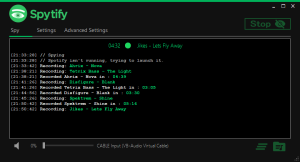
Here’s where things get practical. Download-based methods fail constantly—YouTube API changes, servers go down, songs aren’t available. Recording system audio has one requirement: if your computer can play it, you can record it.
This approach shines for Shazam users in specific scenarios:
Scenario 1: The Underground Remix Problem
Shazam often identifies songs that only exist as YouTube uploads—a DJ’s live remix, an underground track from a SoundCloud stream, a radio rip that never made it to Spotify. Free downloaders can’t handle these. They search for clean studio versions and fail. But if you can play the exact version you Shazam’d (the grainy live recording, the SoundCloud upload), recording software captures it exactly as-is.
Scenario 2: The Platform Lock Problem
Some songs are only on YouTube. Some are only on SoundCloud. Some are on Spotify but not Apple Music. Downloaders that rely on one platform miss everything else. Recording software works across all of them—play it anywhere, record it, done.
Scenario 3: The Anti-Bot Problem
Streaming services constantly update their anti-scraping measures. Downloaders that worked last month break this month. Recording software continues working because it captures what’s already playing on your system—it doesn’t need to authenticate or scrape anything.
Cinch Audio Recorder Ultimate
Cinch Audio Recorder Ultimate is a desktop app for Windows (10/11 64-bit) and macOS (13.5+) that records system audio, automatically splits tracks, and fills in metadata.
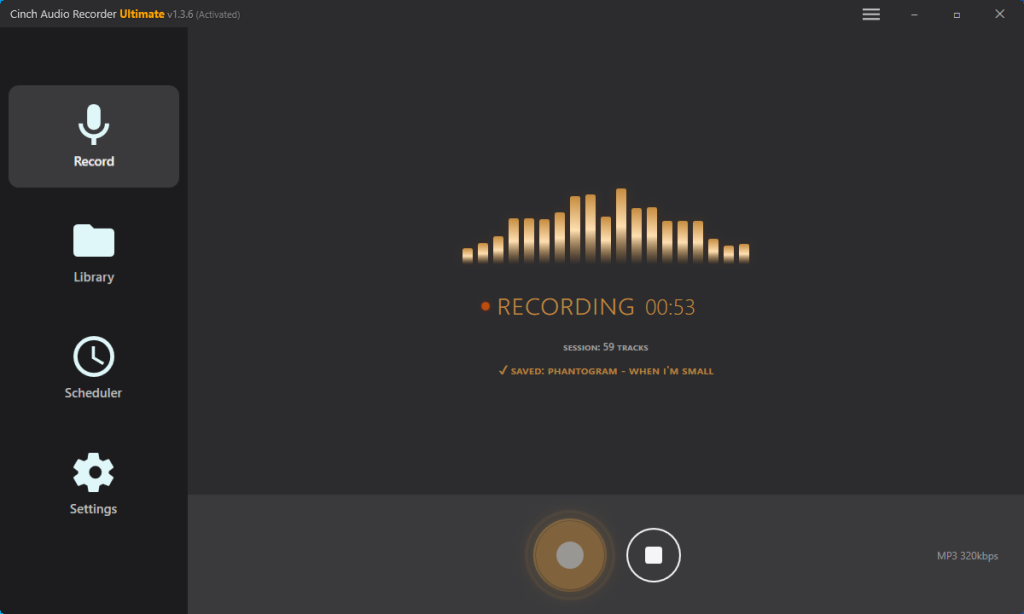
Pricing: $35.95 lifetime license (one-time purchase). Free trial records up to 9 songs.
Why it works for Shazam users:
- No login required — Unlike “Spotify downloaders” that ask for your credentials (security risk), this records what plays on your computer
- Works with any source — YouTube, SoundCloud, Spotify, browser players, anything
- Captures the exact version you found — Not a different mix or studio version
- Auto song recognition — Audio fingerprinting identifies tracks and pulls metadata (title, artist, album, cover art)
- Quality up to 24-bit/48kHz — Records at playback quality when settings are correct
- Output formats — MP3, AAC (M4A), FLAC, WAV
Setup for Best Quality
For Windows users:
- Set playback device to 24-bit, 48000 Hz (right-click speaker icon → Sounds → Playback → Properties → Advanced)
- Disable audio enhancements if recordings sound muffled
- In recording software, choose your format (FLAC for lossless, 320kbps MP3 for good quality with smaller files)
Recording Your Shazam Library
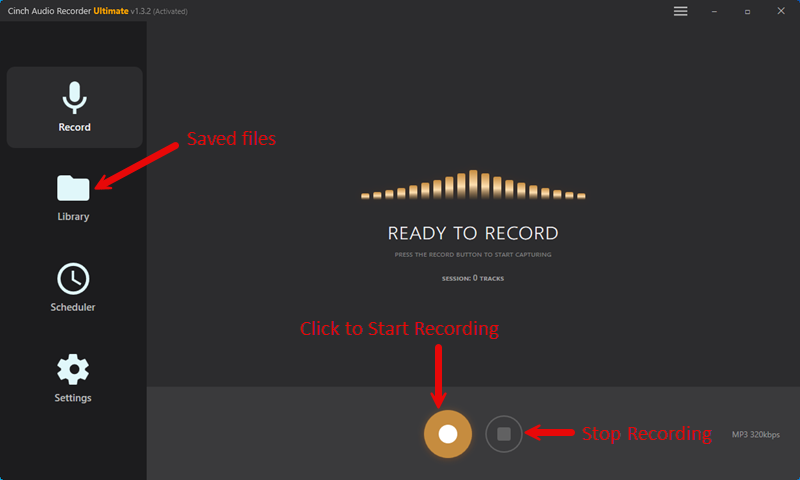
For individual songs:
- Click Record in your software
- Search for the song on YouTube, Spotify, SoundCloud—wherever the exact version exists
- Play it through
- Check your library—the track should appear with metadata auto-filled
For batch recording:
- Export your Shazam library as CSV from shazam.com/myshazam
- Create a playlist in your streaming service or queue YouTube videos
- Start recording, let the playlist run
- Software splits tracks automatically
Test first: Record 3-5 songs before committing to your whole library. Verify settings and quality meet your expectations.
Use this if: You’re building a permanent offline library, especially if your Shazam history includes remixes, live versions, or tracks that only exist on YouTube/SoundCloud.
Method 5: Online Converters (Quick for One-Offs)
Online converters let you paste a YouTube link and download audio as MP3. Useful when you know the song (from Shazam) and can find it on YouTube.
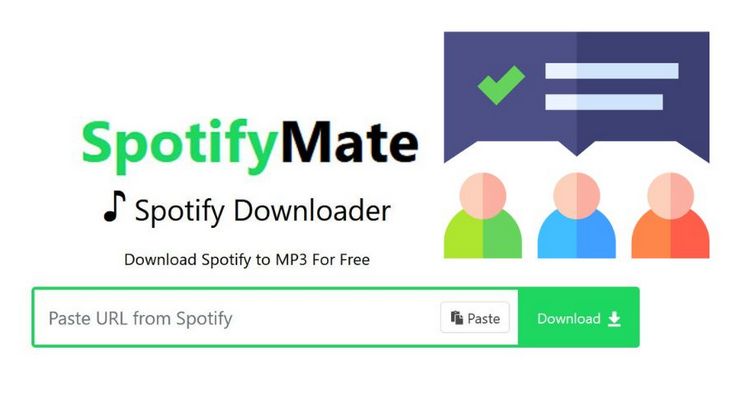
Workflow:
- Search YouTube for the song from your Shazam history
- Copy the video URL
- Go to a converter site (Davapps, YTMP3, OnlineVideoConverter)
- Paste URL, select MP3, convert, download
Quality is 128-256kbps (YouTube’s limit). Avoid sites that ask for login credentials, have excessive pop-ups, or require JavaScript downloads.
Use this for: One or two quick downloads when quality isn’t critical.
Don’t use for: Building a library or getting reliable, high-quality files.
Quality Reality Check
| Method | Typical Quality | Reliability |
|---|---|---|
| Streaming integration | Up to 256kbps (DRM-locked) | High (but files disappear if you cancel) |
| iOS Shortcuts | 128-256kbps | Low (breaks frequently) |
| Android apps | 128kbps | Medium |
| Desktop recording | Up to 24-bit/48kHz | High |
| Online converters | 128-256kbps | Medium |
For gym workouts and casual listening, 128kbps works fine. The quality difference matters on good headphones or for music you care about.
What Should You Do?
Already paying for Apple Music or Spotify? Use the official integration. It’s seamless—but understand you’re renting access, not building a permanent library.
Building a real offline collection? Desktop recording is the stable long-term option. Budget $35.95 for Cinch—or waste hours with free tools like Audacity manually splitting tracks, typing ID3 tags, and hunting down cover art for every single song. Set aside 30 minutes for Cinch setup, then batch-record your library.
Need one song right now? Try an iOS Shortcut or online converter. When those fail—as they often do—switch to desktop recording instead of troubleshooting.
Your Shazam history has remixes, live versions, or SoundCloud-only tracks? Desktop recording is your only reliable option. Downloaders can’t find these versions.
FAQs
Can I download directly from Shazam? No. Shazam identifies songs but doesn’t distribute them. No download button exists.
Why do downloaders fail for some songs? Most free methods search YouTube. If the song isn’t there or has a different title, they fail. Recording works because if you can play it anywhere, you can record it.
What’s the best quality I can get for free? YouTube-sourced downloads max at 128-256kbps. For higher quality, use desktop recording or buy from the artist.
My iOS Shortcut keeps failing. Disable VPN, update the shortcut, verify iOS 14+. If it still fails, the API probably changed—try a different shortcut or switch to desktop recording.