Quick Summary
Your QQ Music downloads are locked after VIP expires. Learn three working methods to convert encrypted files to MP3—audio capture, decrypters, and online tools.
Your QQ Music VIP subscription just expired, and every song you downloaded is suddenly unplayable. The files are still on your device, but the app shows a lock icon and demands you renew. You assumed “download” meant “own”—that’s the gap most users discover too late.
These files aren’t just renamed—they’re encrypted. QQ Music wraps every track in proprietary DRM (formats like .qmc, .mflac, and .mgg) that only the official app can decode with an active subscription. A generic audio converter won’t help here, and no, renaming the file extension does absolutely nothing.
The good news:
If you can still play these tracks (or can get playback working again), there are ways to capture them as standard MP3 files. What actually works depends on your situation—what files you have, when you downloaded them, and how much time you’re willing to invest.
One thing you can’t skip: you need an active VIP subscription to convert anything. If your VIP already expired, you’ll need to re-subscribe temporarily to regain playback, do your conversions, then cancel. Files that won’t play can’t be captured or decrypted—there’s no workaround for this.
Why QQ Music Files Can’t Be Played Directly
When you download a song from QQ Music, you’re not getting a standard MP3 or FLAC file. QQ Music wraps every track in proprietary encryption with file extensions like .qmc0, .qmc3, .qmcflac, .mflac, .mgg, or .tkm. These files contain actual encrypted data, not just renamed audio.
Renaming .qmc to .mp3 doesn’t work because the content inside remains scrambled. A generic audio converter like Freemake or Any Audio Converter can’t help either—it can only convert already-decoded audio, not break encryption.
This is DRM (Digital Rights Management) in action. The file only decrypts when QQ Music’s own player requests it with valid credentials. No active VIP subscription means the player won’t decode the file, even though it’s sitting on your hard drive.
Starting around 2024, QQ Music updated its encryption scheme to something called STag. Files encrypted with STag lack the decryption keys that older tools relied on, which is why a decoder that worked six months ago might now output 0-byte files or garbled audio.

The Download Reality: Free vs VIP vs Purchased
Free QQ Music users get the short end of the stick: about 30 seconds of any track, and that’s it. Full downloads aren’t even an option—no encrypted files to convert, nothing to work with.
VIP subscribers can download, but here’s the catch: those encrypted files only play while your subscription stays active. Let your VIP lapse, and suddenly your entire downloaded library turns into a graveyard of grayed-out entries. The files are still on your device, but the player refuses to decode them without proof of payment. It’s a harsh wake-up call.
Even purchasing individual tracks doesn’t guarantee DRM freedom. Some songs unlock completely after purchase; others stay locked to the QQ Music ecosystem. There’s no predictable pattern—users report mixed results across different artists and albums. You won’t know until you try.
International users face an extra headache: geo-restrictions. Some songs simply aren’t available outside China, and VPN workarounds don’t always stick after download. A track you grabbed while connected to a Chinese VPN server might refuse to play when you’re offline or connected from elsewhere.
Method 1: Audio Capture (Most Reliable)
Audio capture works by recording the decoded audio as it plays through your system, not by cracking the encryption. This sidesteps the cat-and-mouse game between decryption tools and QQ Music updates—if you can hear it, you can capture it.
Why Audio Capture Is Your Safest Bet
Here’s why this approach keeps working: it bypasses the cat-and-mouse game entirely. Whether QQ Music uses older QMC encryption or the newer STag scheme, the audio has to be decoded eventually for you to hear it. Capture just intercepts that decoded stream.
The trade-off is time. Recording happens at 1x speed—a 50-song playlist takes 3+ hours to capture, not counting setup and verification. You also need an active VIP subscription to play the tracks in the first place.
Tools Users Report Success With
Community discussions consistently mention a few options:
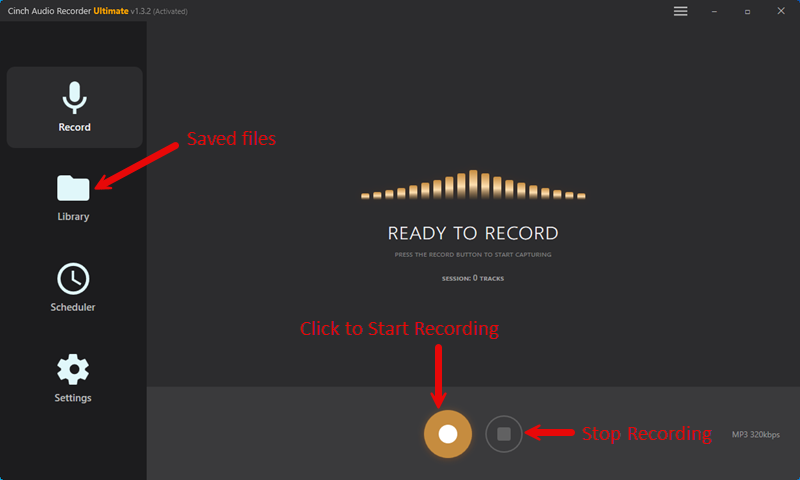
- Cinch Audio Recorder Ultimate: Desktop software for Windows and Mac that records system audio, automatically splits tracks, and identifies songs with metadata (title, artist, album art, lyrics). The trial version lets you record 9 songs free, which is enough to test whether it works with your setup before committing.
Cinch stands out for a few practical reasons: it doesn’t require logging into any streaming account (avoiding security risks and potential account flags), and it records system audio directly without needing a virtual sound card. If your computer can play the track, Cinch can record it.
Setting It Up
- Dial in your quality settings. For MP3 output, 320kbps is transparent for most listeners. Want lossless? Choose FLAC output. For best capture quality on Windows, set your playback device to 24-bit/48000 Hz.
- Start recording before you hit play. Begin the recording session in your capture tool first, then start playback in QQ Music. Let the songs play through—most tools auto-split tracks based on silence detection or media signals.
- Check your work before deleting anything. Play back a few captured files to confirm they’re complete and not corrupted. Make sure metadata populated correctly; if something’s off, use a tool like MP3Tag or MusicBrainz Picard to fix tags.
When Things Go Sideways
If your recordings come out silent, the culprit is usually wrong audio device selection or hardware acceleration in QQ Music. Switch to “System Audio” as your recording source and disable hardware acceleration in QQ Music’s settings—this fixes the issue in most cases.
Glitches and dropouts are frustrating but manageable. Close everything else before recording (yes, close your browser and chat apps—notification sounds will bleed into your captures). If audio sounds muffled, try disabling Windows audio enhancements in your sound settings.
Metadata is hit-or-miss. Popular tracks auto-identify cleanly; obscure releases often don’t. The fix: after your capture session, scan the output folder for files with missing or wrong tags, then use batch editing in your capture tool or a dedicated tagger to fill the gaps.
Method 2: QMC Decrypter Tools (For Existing Files)
If you already have .qmc, .qmcflac, or .mflac files downloaded—and they’re from an older QQ Music version—a direct decrypter can convert them without playback. This is faster than audio capture because it works on the files directly, often in batch mode.
When This Works
Decrypters work on files encrypted with older QMC schemes, roughly those downloaded before QQ Music’s 2024 STag update. If your files are newer, expect failures.
Popular Options
The most frequently cited tools are open-source projects on GitHub:
- unlock-music: Web-based and desktop versions available. Supports multiple encrypted formats including QMC, MGG, and MFLAC.
- qmc-decoder: Windows command-line tool. Drop the executable into your QMC file directory and run—it attempts batch conversion automatically.
How to Use
First, find your downloaded files: QQ Music hides downloads in system folders. On Windows: C:\Users\[YourName]\AppData\Local\Tencent\QQMusic\Cache or search for .qmc, .mflac, .mgg files. On Mac: ~/Library/Containers/com.tencent.QQMusic/Data/Library/Application Support/QQMusic/. Can’t find them? Check QQ Music settings → Download → “Open download folder”.
- Download the decoder from its official GitHub repository (avoid third-party mirrors).
- Place the tool in the same folder as your encrypted files, or point it to the correct directory.
- Run the conversion. For command-line tools, this might mean double-clicking an .exe file; for web-based tools, drag and drop files.
- Check output files. If they’re 0 bytes, unplayable, or obviously garbled, the files likely use STag encryption that this tool can’t handle.
When Decryption Just Won’t Work
If your decryption outputs garbage, errors out, or gives you 0-byte files, your files are almost certainly STag-encrypted. Don’t waste hours trying different decoders on the same files—the encryption is what it is, and no tool is going to magically crack what it can’t handle. Switch to audio capture and move on.
One heads-up: antivirus software often flags these tools as suspicious. They’re not malware, but they’re also not signed by major software publishers (they’re open-source hobby projects, essentially). Add an exception if you trust the source, or skip to audio capture if you’d rather not deal with the uncertainty.
Method 3: Online Converters (Convenient But Limited)
For converting just one or two tracks without installing anything, online converters seem appealing—upload, wait, download. Simple.
The reality is less convenient. Most online services cap quality at 128kbps (noticeably worse than your source), impose file size limits, and offer zero guarantee your files won’t be stored or shared somewhere. You’re uploading encrypted files to a third-party server—privacy isn’t really a thing here.
This method only makes sense for quick, low-stakes conversions where audio quality and privacy aren’t priorities. For anything more than a handful of songs, do yourself a favor and use desktop software instead.
Quality and Efficiency Tips
Bitrate and Output Format
For MP3 output, 320kbps is the sweet spot—near-indistinguishable from the source for pretty much everyone under normal listening conditions. If storage space is tight, 192kbps or 256kbps still sound good with modest quality trade-offs.
Quick reality check for FLAC enthusiasts: capturing to FLAC format doesn’t improve the source. If QQ Music streamed you a lossy file, capturing it losslessly just means a bigger file with the same audio quality. FLAC makes sense if you’re archiving from a lossless source, not otherwise.
Metadata and Album Art
Auto-identification works surprisingly well for popular tracks but face-plants on obscure or brand-new releases. After your conversion session, scan the output folder for files with missing or mangled metadata. Tools like MP3Tag (Windows) or MusicBrainz Picard (cross-platform) can pull tags from online databases and fix everything in bulk.
Album art isn’t just cosmetic—if you’re loading files onto a car stereo or portable media player that displays covers, missing art is annoying. Most capture tools embed art automatically when identification works. When it doesn’t, you’ll need to add it manually.
Batch Conversion Reality Check
If you’re converting hundreds of songs, settle in—this takes time. Audio capture runs at 1x speed, so 50 songs means roughly 3 hours of recording. Plenty of users run captures overnight to avoid eating up their computer during the day.
For decrypters, batch mode processes multiple files at once, which is faster. But here’s the thing: verify a few outputs before assuming everything worked. Mixed encryption types within a single library are common. Some files decrypt cleanly; others don’t. Don’t discover this after you’ve already deleted your originals.
Troubleshooting: When Nothing Works
Let’s walk through the most common failure modes and what to actually do about them.
Your decoder outputs 0-byte files or unplayable audio. The file uses STag or another encryption scheme your tool doesn’t support. This is increasingly common with newer QQ Music versions. Switch to audio capture—there’s no workaround for unsupported encryption.
Your capture tool records silence. Check your audio routing first: make sure you’ve selected the correct recording device (system audio or speaker output, not your microphone). Then disable hardware acceleration in QQ Music’s settings. On Windows, right-click your speaker icon, open Sound Settings, and check whether audio enhancements are enabled—turn those off too.
QQ Music files stay locked even after you “close” the app. QQ Music loves background processes. Check Task Manager (Windows) or Activity Monitor (Mac) and force-quit any lingering QQ Music processes before running decrypters. The app doesn’t always let go of file locks when you click close.
Only some tracks convert successfully. This is annoying but normal. QQ Music uses different encryption for different content based on label agreements and release dates. You’ll probably need to combine methods: decrypter for older files, audio capture for newer ones. Don’t expect a single approach to handle everything.
Antivirus blocks the decrypter. These tools aren’t commercially signed, so antivirus heuristics flag them as suspicious. If you downloaded from the official GitHub repository and verified you’re on the real page, add an exception. If that makes you uncomfortable (totally understandable), just use audio capture instead.
Metadata is wrong or missing. Auto-identification isn’t perfect—sometimes it grabs the wrong album entirely. Use batch editing in your capture tool or a dedicated tagger like MP3Tag to correct errors manually.
Where to Start
If your VIP already expired (most readers): You’ll need to re-subscribe temporarily—there’s no way around this. The files won’t play without an active subscription, and you can’t convert what you can’t play. Consider this a one-time recovery cost to liberate your library. Once you have playback working again, follow the steps below.
If your VIP is still active: Start converting immediately—don’t wait. Audio capture is your most reliable path. Test with a free trial first (Cinch lets you record 9 songs for free) to verify it works with your setup before committing your full library.
Got older .qmc files from before 2024? Try a decrypter first—it’s faster than capture. If it fails on newer encryption, fall back to audio capture.
One final point: verify every output file before you delete anything. Conversion isn’t guaranteed, and you don’t want to discover too late that half your files came out corrupted. Play them back, check the metadata, then—and only then—delete the originals.
Frequently Asked Questions
Why can’t I just rename .qmc files to .mp3? Because renaming doesn’t decrypt anything. The file is encrypted—XOR-based masking in older versions, STag in newer ones. Changing the extension only tells your operating system how to label the file; the scrambled data inside stays scrambled. Try opening a renamed .qmc file in VLC. If it fails or plays garbage audio, you’ve confirmed the encryption is still there.
My decoder worked last month—why does it fail now? QQ Music probably updated their encryption (likely switched to STag), and your decoder hasn’t caught up. Check your QQ Music version—2024 and later use STag. Visit the decoder’s GitHub page to see if a newer release exists. If there’s no update, the project might be abandoned; move to audio capture. Some users try downloading tracks from an older QQ Music version as a workaround, but that comes with its own headaches.
Does audio capture kill sound quality? Not meaningfully, if you set things up right. 320kbps MP3 captures are essentially transparent for most people in normal listening conditions. Use “system audio” or “loopback” as your input (not your microphone), close other apps to avoid capturing notification sounds, and you’re good. Want proof? A/B compare your original stream against the captured file with decent headphones. Most people won’t hear a difference.
Can I convert songs after my VIP expires? Nope. Expired VIP means the files won’t play in QQ Music at all, which means there’s nothing to capture. You need active VIP to play downloaded tracks—without it, you’re locked out. Convert before your subscription lapses, or be prepared to re-subscribe temporarily, do your conversions, then cancel. Alternatively, purchase individual tracks if available—some of those come DRM-free.