Quick Summary
Comparing Spytify alternatives for Windows, Mac, and free options. See when Spytify still works and when to switch to better tools
The right Spytify alternative isn’t about finding the “best” recorder—it’s about matching your platform, budget, and workflow. If you’re on Mac, you need a different tool. If you’re frustrated by quality limits, the problem might not be the recorder. And if you want auto-tagging, you’ll need something beyond Spytify.
This guide cuts through the noise. Not every alternative deserves your attention—some are worth skipping. Here’s what works for each situation.
What Spytify Is (and What It’s Not)
Spytify is a free, open-source Windows app that records audio playing through Spotify. It detects when songs start and stop, splits them into separate files, and pulls basic metadata like track titles and artists.
That’s the pitch. Here’s the reality.
Windows only. If you’re on Mac or Linux, you can stop reading about Spytify right now—it won’t work. This is the first blocker most users hit.
Quality is capped by your Spotify plan. Free users top out at 160kbps. Premium users can reach 320kbps. The recorder captures what Spotify sends to your speakers—nothing more.
Maintenance mode. Spytify is no longer actively developed. The project still functions, but don’t expect new features, and compatibility issues may pile up over time.
What it can’t do:
- Record from other streaming services (only Spotify)
- Process existing audio files you already have
- Upgrade source quality beyond what Spotify delivers
For Windows users who only need to record Spotify and don’t mind the quality cap, Spytify can still work. But if any of those “can’t do” items matches your situation, you need something else.

Why You Might Need a Spytify Alternative
Spytify users typically start looking elsewhere for one of these reasons:
1. You’re on Mac
This is the most common trigger. You search “Spytify for Mac,” realize it doesn’t exist, and now need a tool that actually runs on your system.
2. Quality feels underwhelming
If you’re on Spotify Free, 160kbps is noticeable—especially on decent headphones or speakers. But even Premium users are capped at 320kbps. Some listeners want more, and that’s not something any recorder can fix without changing the source.
3. You use multiple streaming services
Spytify only recognizes Spotify. If you also play music from YouTube Music, Apple Music, or internet radio, you’d need a separate tool for each—or one that captures any system audio.
4. You want more than just recording
Maybe you have existing MP3s missing tags and artwork. Maybe you want lyrics embedded. Maybe you need editing tools. Spytify handles recording and basic splitting, but that’s where it stops.
5. Development has slowed
Open-source projects in maintenance mode can break when Spotify updates. If Spytify stops working, fixes may take time.
Best Spytify Alternatives at a Glance
| Tool | Platform | Cost | Output Quality | Best For |
|---|---|---|---|---|
| Cinch Audio Recorder Ultimate | Windows + Mac | Free trial (9 songs), then paid | Up to 24-bit/48kHz (depends on system settings) | One-stop recording + auto-tagging + existing file processing |
| Audacity | Windows + Mac + Linux | Free, open-source | Up to 32-bit float | Users willing to configure settings manually; needs editing tools |
| Audio Hijack | macOS only | Free version has 10-min limit with noise | High quality | Mac users who want pro-level audio routing |
| DRmare Audio Capture | Windows + Mac | Paid | High quality | Users who want multi-source recording with a simpler interface than Audacity |
Quick decision path:
- Mac user → Audio Hijack or Cinch
- Budget is $0 → Audacity (but expect a learning curve)
- Want auto-tagging and cover art → Cinch
- Need editing tools → Audacity
Top Pick for Most Users: Cinch Audio Recorder
If you’re tired of piecing together separate tools for recording, tagging, and organizing, Cinch is built for exactly that frustration.
Unlike typical Spotify “downloaders” that ask for your login credentials (which raises account security concerns), Cinch records what’s playing through your system audio. No credentials needed—just hit record and play music from any source.
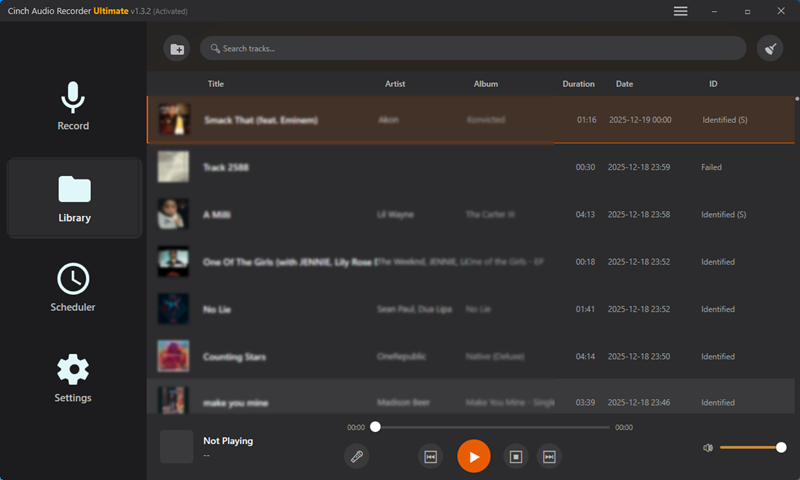
The app handles two workflows. For recording new music, click the Recording button, play any audio (Spotify, YouTube, browser, etc.), and Cinch captures it. When songs finish, the app automatically identifies them using audio fingerprinting, pulls metadata, downloads cover art, and even embeds lyrics.
Cinch also processes existing files—import MP3, WAV, FLAC, or M4A files you already have, and it identifies missing tags and artwork. This is useful if your music library has a lot of “Track 01” entries with no artist info.
Cinch runs on both Windows 10/11 and macOS 13.5+, which directly addresses the Mac users who can’t run Spytify.
The trade-off is that recording happens in real-time (1:1 speed)—you can’t speed it up. That’s true for any legitimate recording tool. It’s recording what plays, not downloading files from servers.
The trial gives you 9 songs—enough to see Cinch’s auto-tagging in action. You’ll get song titles, artist names, album art, and lyrics pulled automatically. No guessing whether it works; the results speak for themselves.
Who it fits: Users who want recording + tagging in one place; Mac users locked out of Spytify; people with existing files that need metadata repair.
Skip it if: You need professional audio editing (Audacity is better for that) or you want completely free with no limits (Audacity again).
Best Free Alternative: Audacity
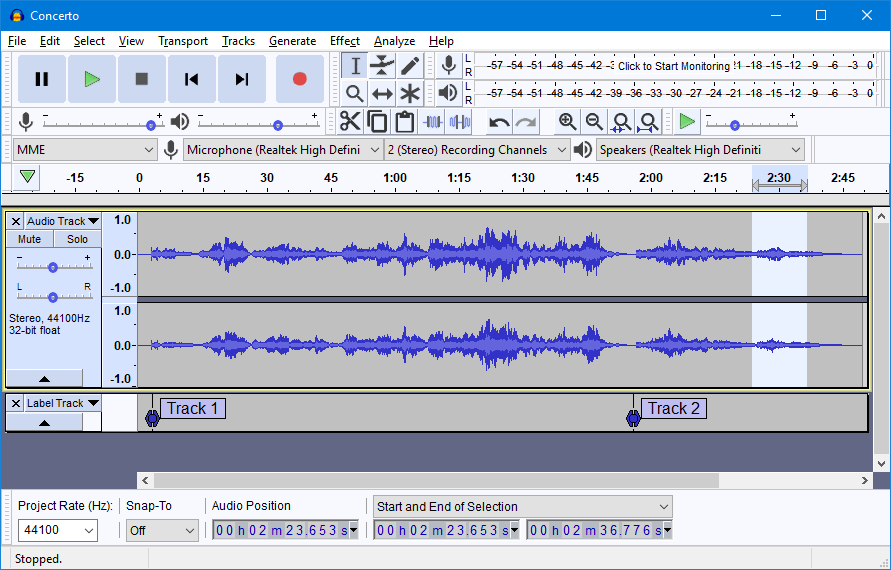
Audacity is the only fully free, cross-platform option with no usage limits. But “free” comes with a price: your time.
You get professional-grade recording and editing, support for Windows, Mac, and Linux, and complete control over every aspect of audio.
What you don’t get automatically: song detection and splitting, metadata tagging, cover art or lyrics.
The setup friction is real. By default, Audacity records from your microphone—not system audio. To capture Spotify or other apps, you need to:
- Set the audio host to WASAPI (Windows) or configure loopback recording (Mac)
- Select the correct recording device (your system’s audio output, not microphone)
- Manually start/stop recording for each song, or record everything and split tracks later
If you can’t get it working: Make sure you’ve selected the recording device that includes “(loopback)” in its name, and that Spotify is actually playing when you hit record. The input level meter should show activity when music plays—if it stays flat, you haven’t configured system audio capture correctly.
This learning curve is real. It’s not hard if you’re comfortable with audio settings, but it’s not plug-and-play either.
Who it fits: Users who need editing tools alongside recording; people willing to invest time learning settings; anyone whose budget is strictly $0.
Skip it if: You want automatic song splitting; you need metadata and cover art without manual work; you just want to click “record” and walk away.
Best for macOS Users: Audio Hijack
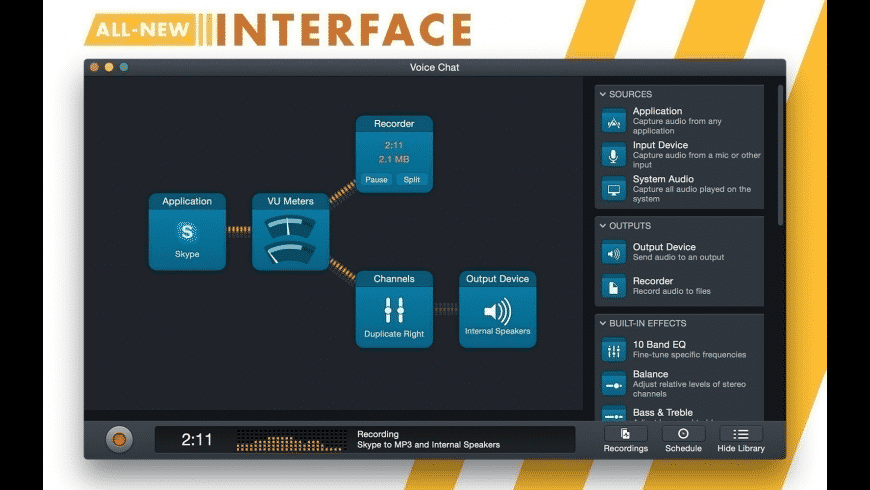
If you’re on Mac, Audio Hijack is the native solution.
Mac users like it for the deep integration with macOS audio system, visual audio routing (drag-and-drop blocks to build recording pipelines), and high-quality output with minimal configuration.
The free version limitation: after 10 minutes of recording, Audio Hijack adds noise to the output. This isn’t a bug—it’s how the free version limits you. For casual use, 10 minutes might be enough. For building a library, you’ll need the paid version.
It does well at capturing audio from specific apps (Spotify, Safari, etc.), routing audio through effects and processors, and recording multiple sources simultaneously.
But it doesn’t do automatic song identification and tagging (you’ll need separate tools for that), and it can’t import and process existing audio files.
Who it fits: Mac users who want pro-level control; podcasters and audio professionals; people already comfortable with audio software.
Skip it if: You’re on Windows (Audio Hijack is Mac-only); you need auto-tagging (Cinch handles this); the free version’s 10-minute limit is a dealbreaker and you won’t pay.
Other Notable Alternatives
DRmare Audio Capture – A paid option for Windows and Mac that captures system audio from multiple streaming sources (Spotify, Apple Music, YouTube Music, etc.). It sits between Audacity’s complexity and Cinch’s auto-tagging features. Choose this if you want multi-source recording without Audacity’s setup friction, but don’t need automatic metadata identification.

Streaming Audio Recorder – Another paid tool with similar capabilities. It works reliably but doesn’t offer distinctive advantages over DRmare or Cinch. Consider it if you find it at a better price point.
Online converters – Skip these for regular use. They tend to deliver lower quality, break frequently, and require uploading audio to third-party servers. Desktop tools are more dependable for anything beyond a one-off test.
How to Choose: A Decision Framework
Still unsure? Run through these four questions:
1. What platform are you on?
- Windows → All options available
- Mac → Audio Hijack or Cinch
- Linux → Audacity
2. What’s your budget?
- $0 → Audacity (accept the learning curve)
- Willing to pay for convenience → Cinch or Audio Hijack
3. What do you need beyond recording?
- Auto-tagging + cover art → Cinch
- Just recording → Audacity
- Professional editing → Audacity
- Audio routing and effects → Audio Hijack
4. Do you have existing files that need fixing?
- Yes → Cinch can import and identify them
- No → Any recorder works
Quick Recommendations by Scenario
Windows user, want a better workflow → Cinch. Auto-tagging, cover art, and it handles existing MP3s too.
Mac user → Cinch (auto-tagging + cross-platform) or Audio Hijack (pro-level audio control).
Need auto-tagging and cover art → Cinch. The 9-song trial shows you exactly how well it works.
Budget is $0 and willing to learn → Audacity. Set aside an hour for WASAPI/loopback setup.
Professional editing needed → Audacity. It’s built for that.
FAQ
Is Spytify still working in 2026?
Spytify theoretically still works, but it’s in “maintenance mode”—functional but no longer actively developed. Windows users may continue using it without issues, but community support is limited if problems arise. If Spytify breaks after a Spotify update, expect delays before fixes arrive.
Quick check: If Spytify launches, detects Spotify playback, and creates separate files for each song, it’s working. If it fails to split tracks or stops detecting songs, you may need to switch tools.
What’s the best free Spytify alternative?
Audacity is the only fully free, open-source, cross-platform option with no usage limits. The trade-off: you’ll need to manually configure system audio recording (WASAPI on Windows, loopback on Mac) and handle track splitting yourself.
Does Cinch Audio Recorder Ultimate require Spotify login?
No. Cinch records system audio—what’s playing through your speakers. You don’t enter Spotify credentials into the app. This differs from “downloader” tools that request login access, which carries account security risks.
Spytify works for basic Spotify recording on Windows—but it can’t touch the source quality ceiling, and it won’t process your existing music library. If you’re on Mac, want auto-tagging, or need to record from multiple sources, you’ve got better options above.
Where to start? Download Cinch’s free trial and record 9 songs. You’ll immediately see the difference: automatic song detection, metadata, cover art, and lyrics—all without touching a single setting.