Quick Summary
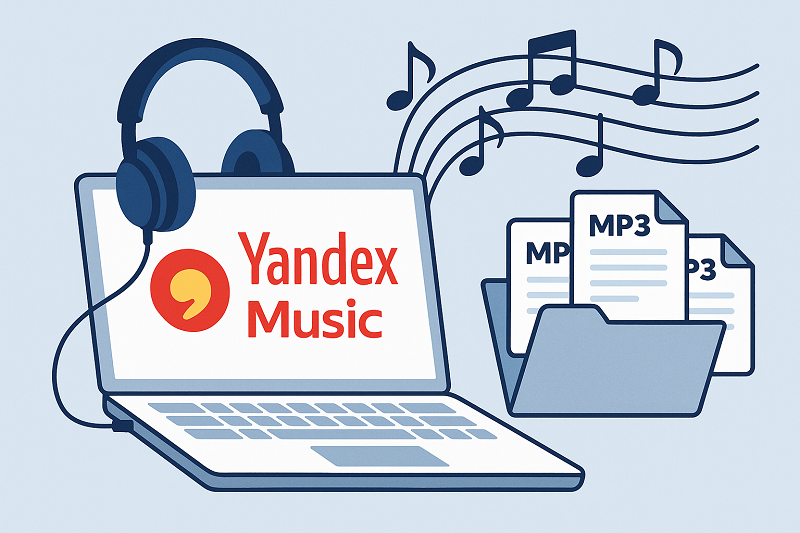
"Yandex Music doesn't offer MP3 downloads, even with Plus. Here's how to record songs as portable MP3 files using free tools, no login required.
You found the perfect track on Yandex Music. You want it as an MP3 file for your car USB drive, old MP3 player, or a device that doesn’t support streaming apps. You click around looking for a download button. Nothing. Or worse, it tells you to subscribe to Yandex Plus, which you can’t even pay for from your country.
Yandex Music doesn’t sell or export MP3 files at all. Even Yandex Plus subscribers can only download encrypted files that play inside the Yandex Music app. For portable MP3s you actually own, recording system audio is the most reliable workaround. It’s safe (no login required for the recorder), works internationally, and creates standard MP3 files. The trade-off: you’re capturing free-tier playback in real time, ads and all.
You need a computer with internet access, a web browser (Chrome, Firefox, or Edge), and about 10 minutes to install and configure Audacity. No technical background required.
It’s 11 PM, you need one song on a USB drive for your car tomorrow morning, and you can’t subscribe to Plus from your country. Recording gets it done. This guide walks you through the fastest free method first (Audacity + WASAPI on Windows), then mentions automation options if you’re recording entire playlists regularly.
Why Yandex Music Doesn’t Offer MP3 Downloads (And What You Can Actually Do)
Yandex Music is a streaming service, not a music store. Even with Yandex Plus, you’re not buying MP3s. You’re downloading encrypted cache files that only the Yandex Music app can decrypt and play.
The subscription reality:
- Free tier: Stream most songs with ads at standard quality (typically 128-192kbps). No offline downloads.
- Yandex Plus: Download for offline listening within the app only. Files are encrypted with DRM, not transferable.
- Regional restrictions: Subscription payments work primarily in Russia, Belarus, Kazakhstan. International users often cannot complete payment.
Users commonly search for “Yandex Music MP3 downloader” and encounter sketchy sites asking for login credentials. Others subscribe to Plus, only to discover downloads are app-locked.
Recording system audio sidesteps these problems. The software captures what your speakers play. You log into Yandex Music separately in your browser. The recorder never touches your credentials.
If you already know Yandex requires Plus and just want the recording steps, head to the “Free Method” section.
If you expected official MP3 purchases, recording will feel like a downgrade. It is. But it’s the only path to portable files without subscription barriers. If you’re an international user who can’t pay for Plus, or you just need one song on a USB drive tonight, recording gets it done without risking your account security.
Free Method: Record Yandex Music with Audacity and WASAPI Loopback
Audacity is free, open-source, and works on Windows, Mac, and Linux. On Windows, it supports WASAPI loopback, which captures digital audio before it hits your speakers. This avoids the noise and room echo you’d get from recording with a microphone.
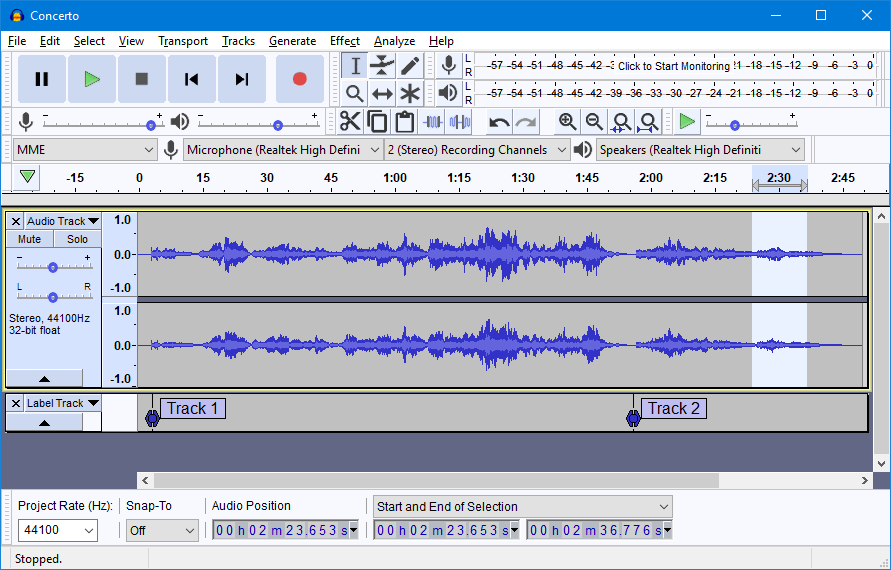
Setup (Windows)
Goal: get Audacity configured to capture clean digital audio from your system, ready to record any song playing in your browser.
- Install Audacity: Download from audacityteam.org.
- Configure audio host: Pick “Windows WASAPI” from the audio host dropdown in the toolbar.
- Select loopback input: Choose your playback device with “(loopback)” in the name (e.g., “Speakers (Realtek Audio) (loopback)”).
Loopback may not appear until audio is playing. Start a song first if you don’t see it.
- Set quality: Edit → Preferences → Quality. Set sample rate to 48000 Hz, format to 24-bit.
- Disable audio enhancements (critical): Right-click speaker icon → Sounds → Playback → Default device → Properties → Enhancements tab → “Disable all enhancements.”
OEM audio software (Dolby, Waves MaxxAudio, Beats) causes muffled recordings if not disabled. The Enhancements tab should disappear or become grayed out after disabling.
Recording workflow
Before recording a full playlist, record 30 seconds of any song to verify your setup works. This saves you from discovering problems after a 20-minute recording session.
- Open Yandex Music in your browser. Queue up the song.
- In Audacity, click Record, then start playback.
- Watch the recording meter. It should peak around -6dB to -3dB (not hitting red).
- When the song ends, click Stop.
- Export: File → Export → Export as MP3. Choose 192kbps. Add ID3 tags in the metadata dialog.
You should now have a playable MP3 file in your chosen folder. Test it in your media player before proceeding to record more songs.
Manual track splitting
For playlists, record the entire session, then split:
- Use the Selection Tool to mark the first song’s boundaries.
- File → Export → Export Selected Audio. Name and tag the file.
- Repeat for each track.
Result: You’ll have individual MP3 files for each song. This is tedious for 10+ songs. If you’re doing this weekly, automation becomes worth considering.
Mac users
macOS doesn’t have WASAPI, but BlackHole (free, open-source) achieves the same result. Install it, set BlackHole as your system output temporarily, then select BlackHole as the input device in Audacity. The recording workflow stays the same.
Note: When playing audio through BlackHole, you won’t hear it from your speakers (it’s routed to Audacity instead). This is normal. You can monitor through headphones in Audacity if needed.
Browser-Based Recording: No Software Installation Required
Can’t install software? Browser-based recorders work in Chrome, Firefox, or Edge. Sites like online-voice-recorder.com or vocaroo.com offer this, and some Chrome extensions capture tab audio directly.

The workflow: open the recorder site, grant audio permission, open Yandex Music in a separate tab, start recording, play your song, then stop and download.
Record 15 seconds first to verify the site captures audio before committing to a full song. Some browsers block system audio capture for security reasons.
Be aware of the trade-offs. Quality is often limited (may not exceed 128kbps). Some browsers block system audio capture entirely. This approach works for one-off recordings, not large playlists.
Automated Option: Cinch Audio Recorder for Frequent Recording
If you’re recording entire playlists weekly and hate manual track splitting, automation tools exist. Cinch Audio Recorder is one option (~$36 lifetime license, trial allows 9 free recordings).
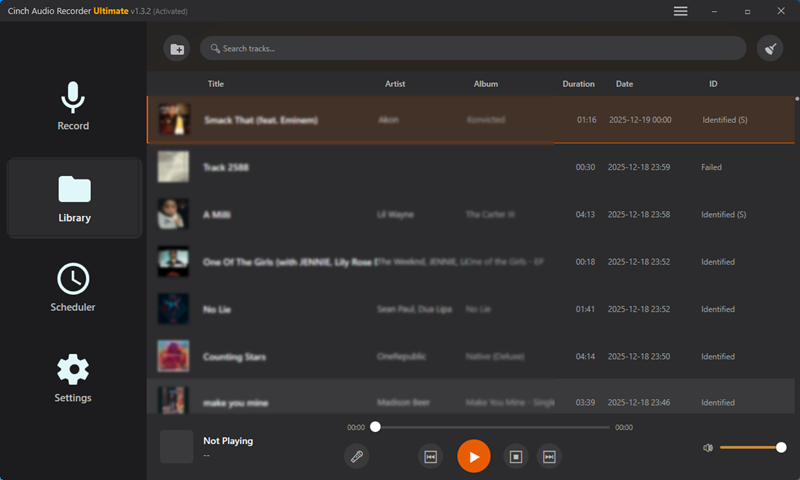
Cinch records system audio the same way Audacity does—no login required—but adds two time-savers. It auto-detects track boundaries and splits files automatically, and it fetches metadata (title, artist, album, cover art) using audio fingerprinting.
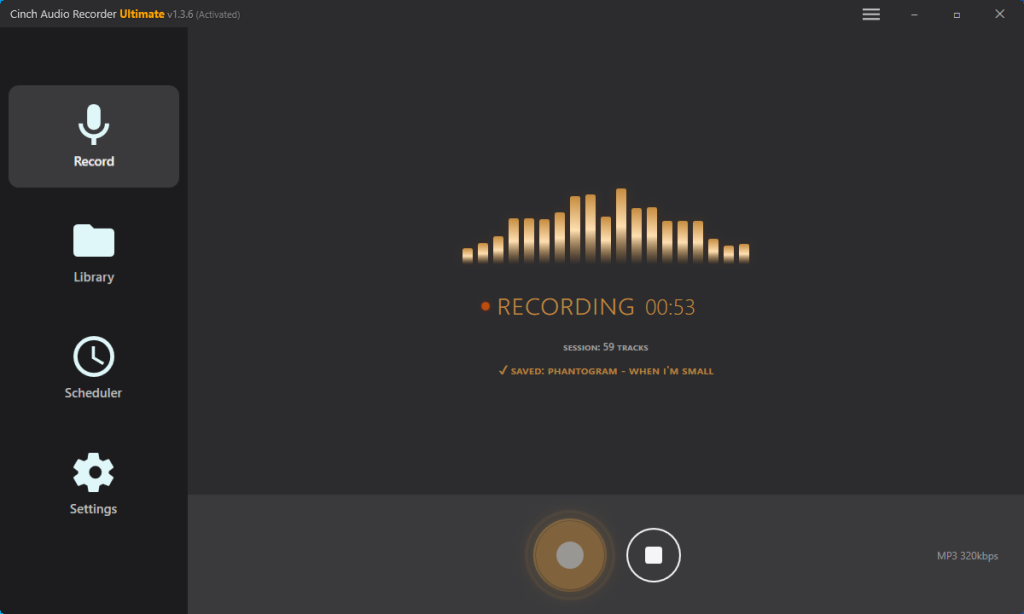
Detection modes:
- SMTC mode (Windows): Uses Windows media track-change signals. Fast and accurate.
- Traditional mode: Uses silence detection.
Output formats: MP3 (default, up to 320kbps), AAC, FLAC, WAV.
Here’s the key point: Cinch doesn’t improve audio quality over Audacity. It captures the same system audio. The value is time saved on splitting and tagging. Test with Audacity first to confirm recording works on your system, then decide if the automation is worth ~$36 for your use case.
Try before buying: The trial allows 9 free recordings. Use it to verify auto-splitting works with Yandex Music playback on your system before purchasing.
Worth it if you value your time. Audacity is fine for one song, but if you’re building a 50-song playlist, the manual splitting will burn you out. Grab the Cinch 9-song free trial and see how much easier fully automated recording can be.
Fix Common Recording Problems
Silent recording
Wrong input device or audio host. In Audacity, select “Windows WASAPI” as the host, then choose a device with “(loopback)” in the name. Also verify your playback and recording devices match—if you’re playing through a USB headset but recording from speaker loopback, you’ll get silence.
Play audio and watch the Audacity recording meter. If it doesn’t move at all, you’ve selected the wrong input device.
Muffled or “underwater” sound
Windows audio enhancements are processing the signal before Audacity receives it. This is the #1 quality complaint on Dell, HP, and Lenovo laptops. Right-click the speaker icon → Sounds → Playback → Default device → Properties → Enhancements tab → check “Disable all enhancements.” Re-test with a 30-second sample before committing to a full playlist.
A clean recording sounds clear and bright, not distant or processed. If it still sounds muffled after disabling enhancements, check that you’re not using a Bluetooth codec that compresses audio.
Ads captured in every recording
This is a free tier limitation, not a technical problem. You’ve got three options: pause manually when ads start (annoying but free), live with ads as the cost of portable files, or subscribe to Plus if your country supports it. No software can skip or remove ads from free-tier playback—that’s a platform restriction, not something a recorder can fix.
Low volume or distortion
Recording levels set incorrectly. Adjust the recording slider in Audacity and watch the meter—peaks should hit around -6dB to -3dB, not consistently hitting red. If it’s too quiet, nudge the slider up; if it’s clipping, bring it down.
Most systems work well with the recording slider around 70-80%. Start there and adjust based on the meter.
Can’t find loopback option
Two common reasons: audio wasn’t playing when you selected the device, or your hardware doesn’t support WASAPI. Start a song first, then select the device in Audacity—loopback only appears when a stream is active. If still unavailable, enable “Stereo Mix” in Sound settings, or as a last resort use virtual audio cable software like VB-Audio.
Regional catalog restrictions
Yandex Music licensing varies by country. There’s no technical fix here—you can only record what’s playable in your region. Some users try VPNs to access other catalogs, but that may violate Yandex’s terms of service.
When Recording Is NOT the Right Answer
Recording solves a specific problem—portable files when Plus isn’t an option. But it’s not the best solution for everyone.
If you want highest quality (320kbps) and ad-free playback, and Plus is available in your country, subscribe to Yandex Plus instead. Recording free tier gives you 128-192kbps with ads. That’s the source you’re capturing.
If you need hundreds of songs quickly, try another platform. Manual recording is real-time: a 3-minute song takes 3 minutes. YouTube Music Premium, Spotify Premium, or Apple Music offer faster downloads with broader international availability.
If you want metadata without manual work and won’t pay for automation, recording isn’t ideal. Recording won’t auto-tag files. You’ll need MusicBrainz Picard (free) or similar tools afterward.
If your device supports offline apps but Yandex Music doesn’t have an app for it, consider alternatives. Spotify free tier (allows offline on mobile with ads) or YouTube Music may have better device support.
When recording makes sense: you need permanent files for unsupported devices (car USB, old MP3 player), you’re security-conscious and won’t use sketchy downloader sites, you’re international and cannot subscribe to Yandex Plus, or you accept the quality and ad trade-offs.
Think about your actual use case: if you’re recording a single playlist once a month, the free Audacity method is fine. If you’re building a 500-song library for weekly DJ gigs, the manual work will burn you out—that’s when paid automation makes sense.
What To Do First
Start with the free method. Install Audacity, configure WASAPI loopback, disable audio enhancements, and record a single 30-second test. If the test sounds clear, you’ve confirmed the workflow works on your system. Then decide: is manual track splitting tolerable for your use case, or do you record enough playlists to justify automation?
Recording isn’t a perfect replacement for official downloads. It’s a practical workaround when Plus isn’t an option or you need files that actually work outside the app. It takes time, you’ll deal with ads on the free tier, and the quality matches what you can stream. For most people needing a handful of songs on a USB drive or old MP3 player, that’s an acceptable trade-off. After following this guide, you should have 1-3 test MP3 files that play on any device. If your first test fails, check the troubleshooting section before assuming recording won’t work on your system.